Manage explorations
An exploration in NebulaGraph Studio is a canvas where you can query and visualize data from graphs in NebulaGraph Database Developer Edition . You can create, delete, and rename explorations in NebulaGraph Studio. Create, rename, or delete explorations in NebulaGraph Studio.
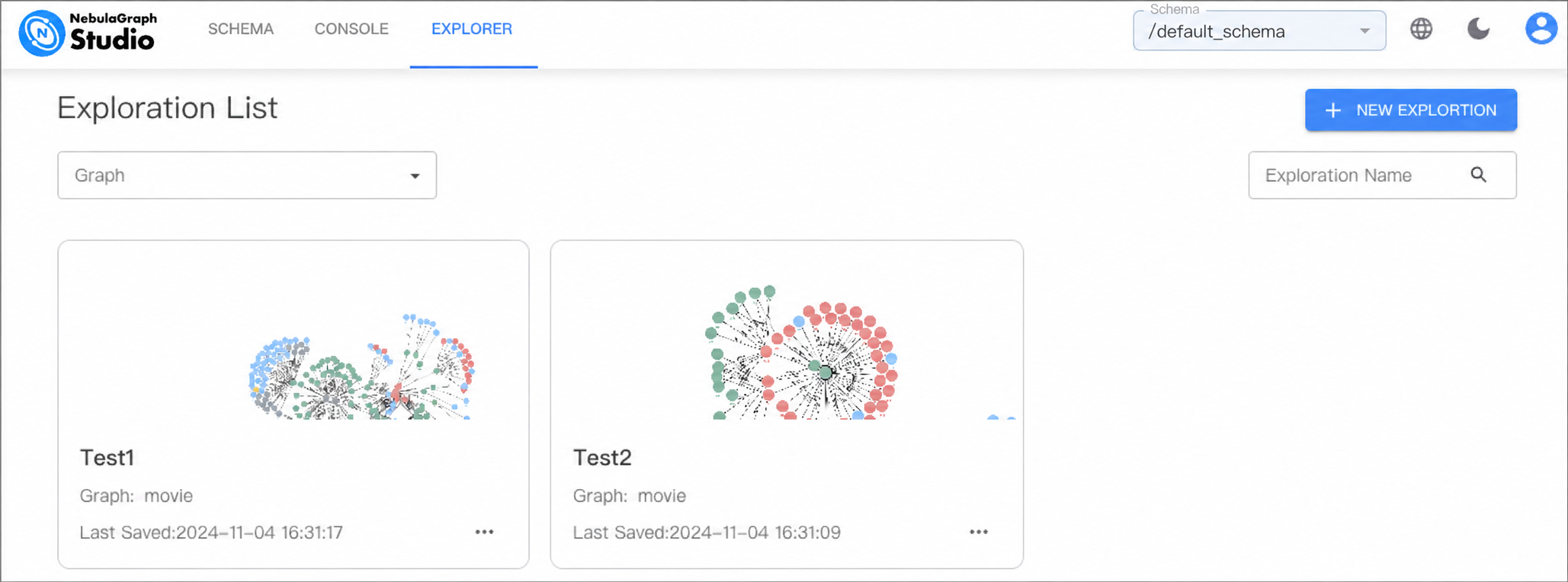
Prerequisites
- NebulaGraph Studio is connected to the Graph service of a NebulaGraph Database Developer Edition service group. For more information, see Connect to NebulaGraph Database Developer Edition.
- A graph is created in the NebulaGraph Database Developer Edition service group. For more information, see Manage graphs or CREATE GRAPH.
Create an exploration
- In the top navigation bar of NebulaGraph Studio, click the EXPLORER tab.
- In the upper right corner, select the target Schema from the Schema drop-down list.
- Click New Explore.
- In the dialog box that appears, enter a name for the exploration and select the graph that you want to explore.
- Click Create.
Delete an exploration
- In the top navigation bar of NebulaGraph Studio, click the EXPLORER tab.
- In the upper right corner, select the target Schema from the Schema drop-down list.
- On the Exploration List page, select the exploration that you want to delete.
- Click
 in the lower right corner and then click Delete Exploration.
- In the confirmation dialog box that appears, click Confirm.
Rename an exploration
- In the top navigation bar of NebulaGraph Studio, click the EXPLORER tab.
- In the upper right corner, select the target Schema from the Schema drop-down list.
- On the Exploration List page, select the exploration that you want to rename.
- Click in the lower right corner and then click Edit.
- In the dialog box that appears, enter a new name for the exploration and then click Confirm.
Create a snapshot from console results
Exploration snapshots created with the Explorer button on console graph results also appear in Exploration List. Open a snapshot from the list to continue exploring. For more information, see Console overview.