Edit graph data
Edit mode in graph exploration lets you add nodes and edges, edit properties, and delete nodes and edges. Use edit mode on the canvas to modify graph data in NebulaGraph Database Developer Edition.
Prerequisites
- You have created and opened an exploration with an associated graph and available graph type information. For more information, see Manage explorations.
- The NebulaGraph Database Developer Edition user you are logged in as has the required write permissions on the target graph.
- The metadata database in NebulaGraph Studio is enabled:
Database.Enableis set totrue.
Warning
Confirmed additions, updates, and deletions in edit mode write directly to NebulaGraph Database Developer Edition. They do not wait for you to save the canvas. Saving an exploration snapshot retains the canvas state and cannot undo NebulaGraph Database Developer Edition changes.
Enter edit mode
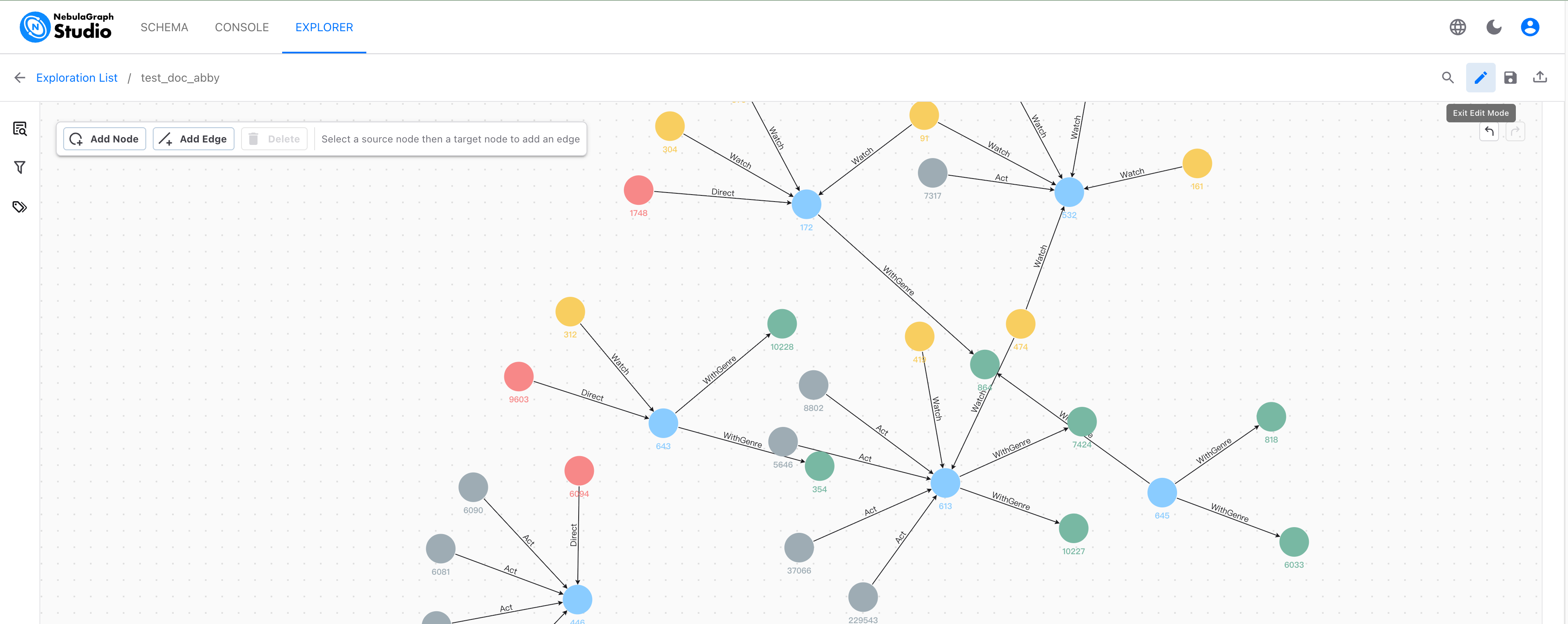
In the upper right corner of the exploration canvas, click the pencil icon (Edit Mode). The canvas displays Add Node, Add Edge, and Delete actions. The edit mode button is unavailable if the target graph or its graph type information is unavailable.
When finished, click Exit Edit Mode to return to exploration.
The highlighted pencil button indicates that edit mode is active. The editing toolbar appears in the upper left corner of the canvas.
Add a node
- In edit mode, click Add Node.
- In the dialog box, select a node type and enter its property values.
- Check that primary key and non-nullable properties are provided and values match their data types, then click Confirm.
Adding nodes of types with automatically generated identities is not supported here. If no node types are available for insertion, you cannot add a node.
Add an edge
- Select two nodes on the canvas in order as the source and target.
- Click Add Edge.
- In the dialog box, select an edge type available between these node types and enter its property values.
- Check the source, target, and edge direction, then click Confirm.
Available edge types depend on the graph type definition. If the interface indicates that the direction is reversed, the second selected node becomes the source. If there is no eligible edge type between the node types, you cannot add an edge.
Edit properties
- In edit mode, select one node or edge.
- Right-click it and select Edit Properties.
- Modify the property values in the dialog box and click Confirm.
Primary keys and multiedge keys are read-only. If all properties of a type are keys, there are no editable properties. Nullable properties can be left empty to represent NULL; non-nullable properties require a value.
Delete nodes and edges
Warning
This operation permanently deletes data from NebulaGraph Database Developer Edition. Deleting a node also deletes all its connected edges, including edges not displayed on the current canvas. The operation cannot be undone. To change only the canvas display, use the filtering or hiding operations in Manage canvas data.
- In edit mode, select the nodes or edges to delete.
- Click Delete.
- In the Delete from Database dialog box, review the node and edge counts and the impact of the deletion.
- Click Delete to confirm.
If the interface reports that some deletions failed, check the actual NebulaGraph Database Developer Edition results. Do not assume that all deletions succeeded or that all changes were rolled back.